















Accelerate Mold Machining Performance with CAM-TOOL V20.1 – Part 1
CAM-TOOL V20.1 is the latest release of advanced CAM machining software, designed to optimize machining processes with cutting-edge features. With improved performance and enhanced accuracy,
CAM-TOOL V20.1 is the latest version of advanced CAM software, designed to optimize machining processes with cutting-edge features. With improved performance and enhanced accuracy, CAM-TOOL V20.1 supports the machining of complex parts, improves product quality, and optimizes overall processing time.
Let’s explore how updating to CAM-TOOL V20.1 can help improve your CAM operation efficiency.
1. Cutting Reference Coordinates Button
A new feature, “Cutting Reference Coordinates,” has been added in CAM-TOOL V20.1. This function allows users to easily activate the current machining coordinate system directly from the Tree View, instead of accessing it through “Manage Work Plane” as in previous versions.
In addition, this feature also enables users to turn the display of the calculated coordinate axes on or off, improving usability and workflow efficiency.

2. Tool Path Boundary Display
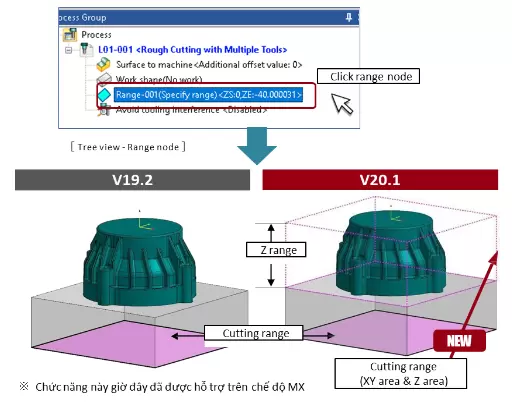
When clicking the “Range” button, in addition to the existing “Cutting range (XY area)”, a new option “Cutting range (XY & Z area)” is now available.
► This enhancement improves visibility and clarity during CAM operations, making it easier to understand and control tool path boundaries.
3. Expansion of the Avoid Tooling Interference Feature
■ It is now possible to create templates using “Avoid Tooling Interference.”
With Edit Template, you can configure the Avoid Tooling Interference settings and create an “Inherited Process” cycle.
► This helps reduce the workload required for profile editing and improves overall CAM programming efficiency.

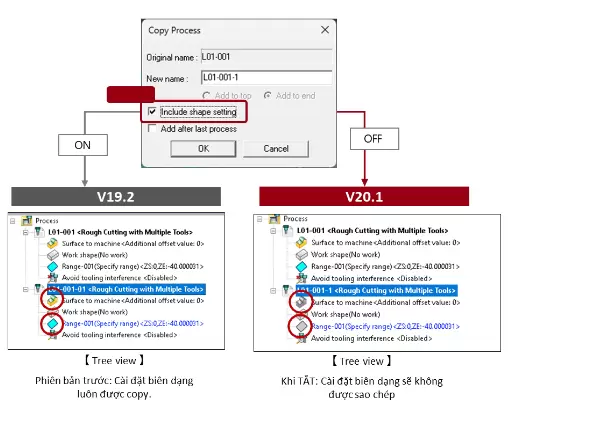
4. Added Include Shape Setting Feature
■ It is now possible to select Include Shape Setting when copying machining programs.
► This eliminates the need to manually delete unnecessary objects after copying, helping streamline operations and improve efficiency.
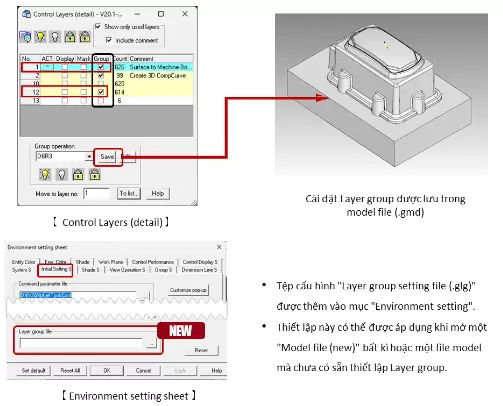
5. Added Save Feature
■ Layer Group Setting can now be saved directly into the model file.
► This allows the settings to be immediately applied when opening new models or models that do not yet have Layer Group settings, improving setup efficiency and consistency.
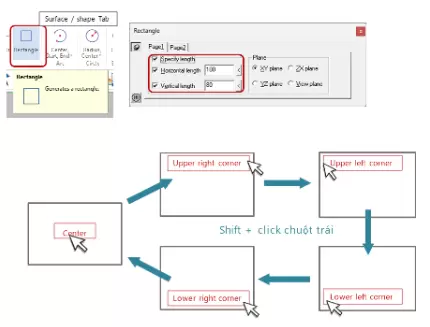
6. Rectangle / Finite Plane Command
■ When creating a rectangle with the “Specify length” checkbox enabled, the reference point position was previously fixed at the center.
► Now, the reference point can be moved to other corners by using the “Shift + left mouse click” operation.
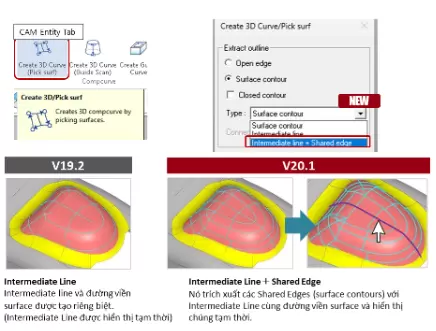
7. 3D Comp Curve (Pick Surf)
■ When extracting surface boundaries to create a 3D Curve, the “Intermediate line + Shared edge” guide method has now been added to the “Create 3D Curve / Pick Surf” command.
► This allows shared edges to be extracted together with intermediate lines and surfaces in a single step, improving programming efficiency.
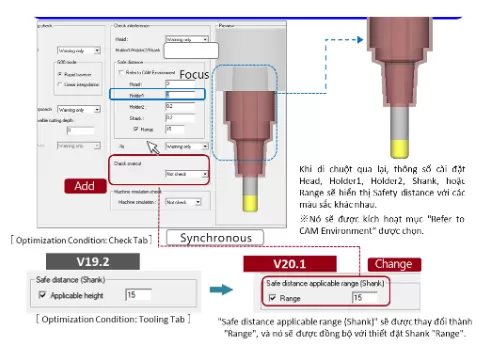
8. Safe Distance Applicable Range (Shank)
■ This function has been added to Safety Distance, and a “Range” parameter is now available for the shank settings.
► This allows users to preview the applicable range of the Safety Distance, enabling effective use in operations such as 5-axis conversion and interference avoidance adjustment.
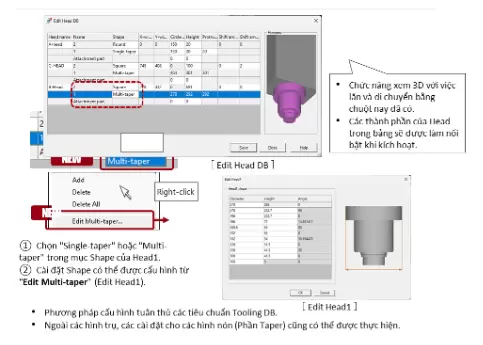
9. Head Multi-Taper Feature
■ A new “Multi-Taper” function has been added to allow the selection of taper head shapes. With this enhancement, taper geometries can be represented more realistically, improving the accuracy of collision detection.
■ In addition, the Calculation Condition can still be used to modify the taper head, as in previous versions.
Related posts

AI in R&D: What Should Companies Prepare for Effective Implementation?

Can AI Replace Design Engineers? The Future of AI in Engineering

How to Shorten Product Development Time: 5 Critical Factors Companies Often Overlook

Modern Product Development: Why Many Manufacturers Still Face Product Launch Delays